
Welcome to HoneycombHR!
Now that you have setup your account, you will be able to view and print your invoices for the services rendered by HR Options per biweekly cycle. When a new invoice is created, you will receive a notification from HoneycombHR, prompting you to login to your account for review. This is to ensure all sensitive information is stored, sent, and received safely through a secure means.
Getting to your Invoice(s)
Once logged in, you will be sent to your homepage, or your Dashboard. The menu bar at the top shows modules you have access to; the "Bill Pay" module gives you access to print and view invoices for your billing group. If you do not see your module, please reach out to our Service Team at service@hroptions.com to update your account settings.
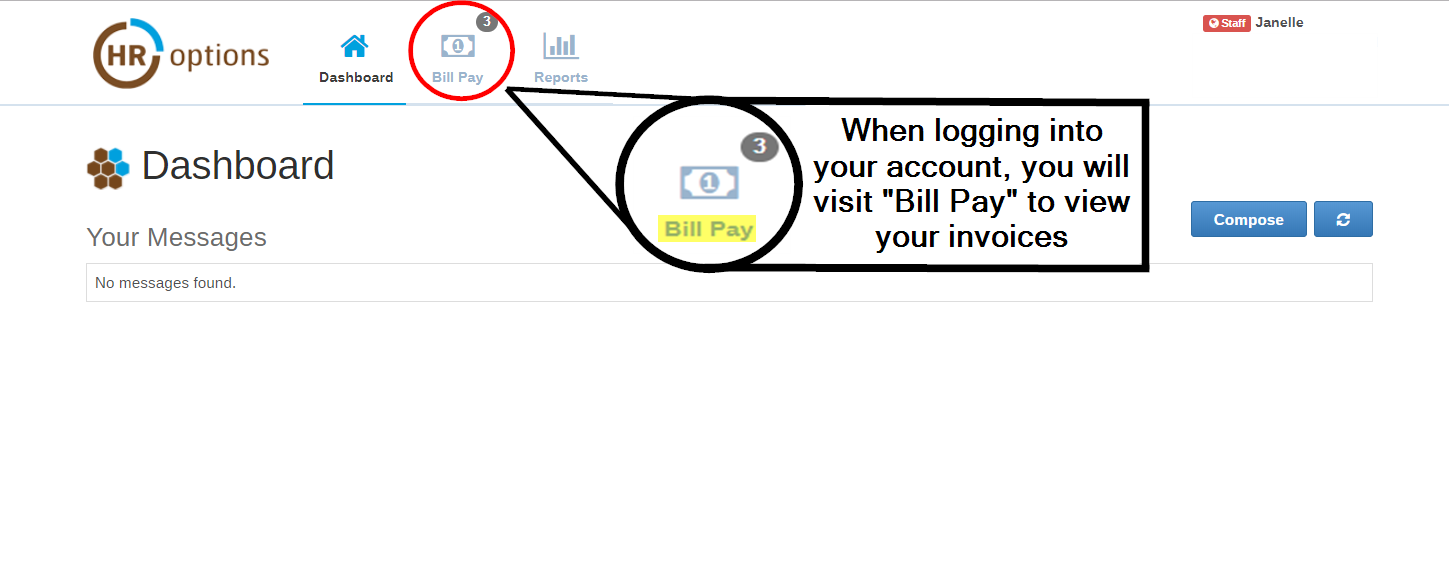
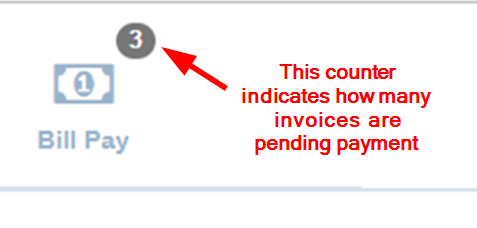
*You will periodically notice a numbered bubble - this will tell you how many invoices have a balance due.
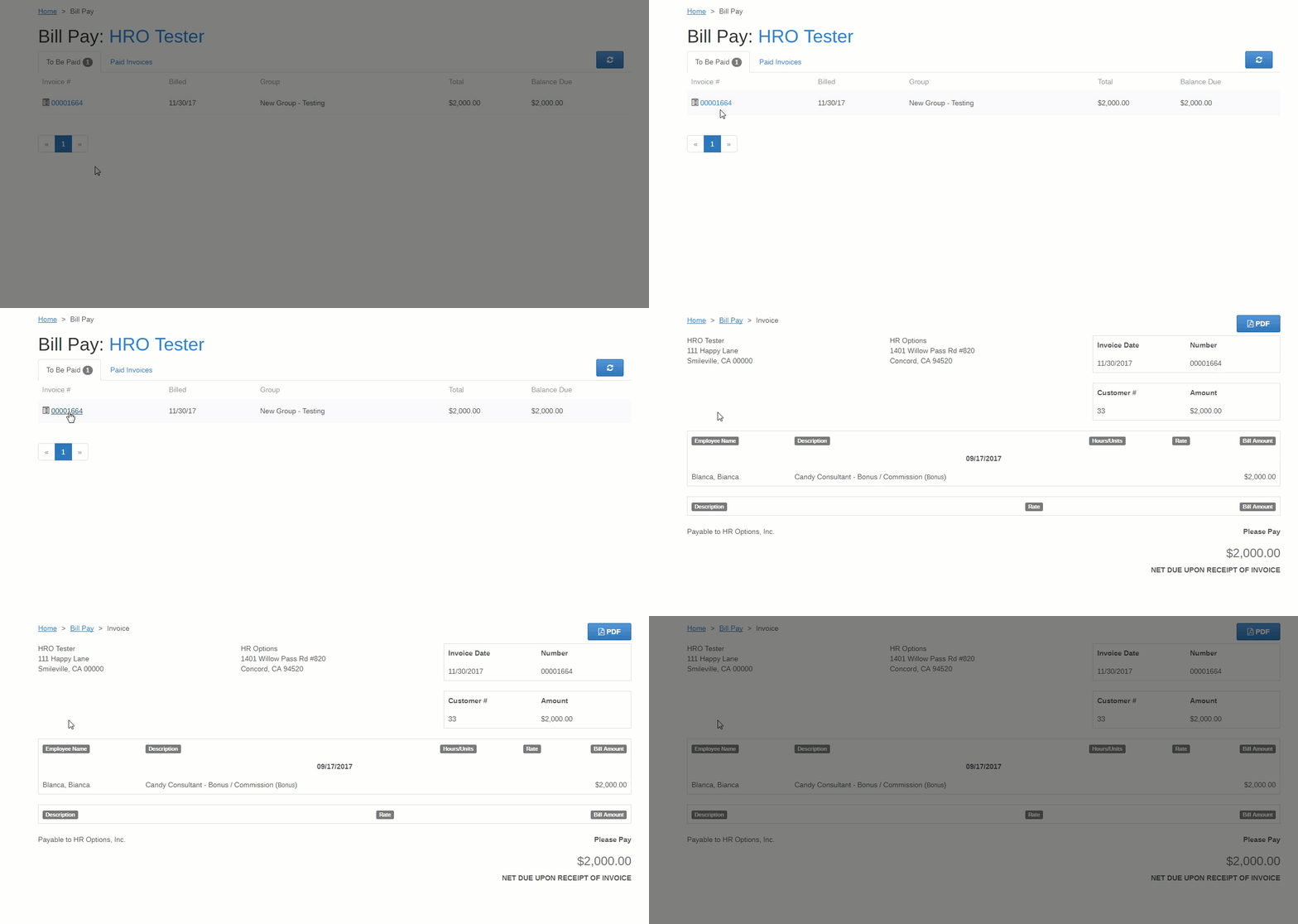
In the Bill Pay module, there will be two tabs - "To Be Paid" [invoices] and "Paid Invoices". As the names describe, your new/unpaid invoices will be in To be Paid, and your paid invoices will be in Paid Invoices. In either tab, each line item is quickly summarized with the invoice number, billing date, and billing group, as well as the invoice total and any balance due. Once a balance due is updated to "$0.00", it will automatically be moved to your Paid Invoices.

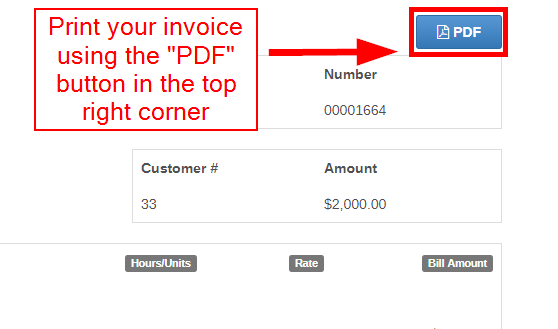
To view the full details of your invoice(s), select the invoice number located in the farthest left column. This will take you to a new page, still within your account. If you would like to take it a step further, you may easily download and/or print your opened invoice by selecting the "PDF" option in the top right corner.
0 Comments