
Welcome to HoneycombHR!
Now that you have set up your HoneycombHR account, you will be able to log in to view and approve timesheets, (and expenses, when applicable) for your HR Options employees. When a new timesheet or expense report is submitted, you will receive an email notification from HoneycombHR, prompting you to log in to your account to review. This is to ensure all sensitive information is stored, sent, and received safely through a secure means.
Getting to your Timesheet(s) and Expense Reports
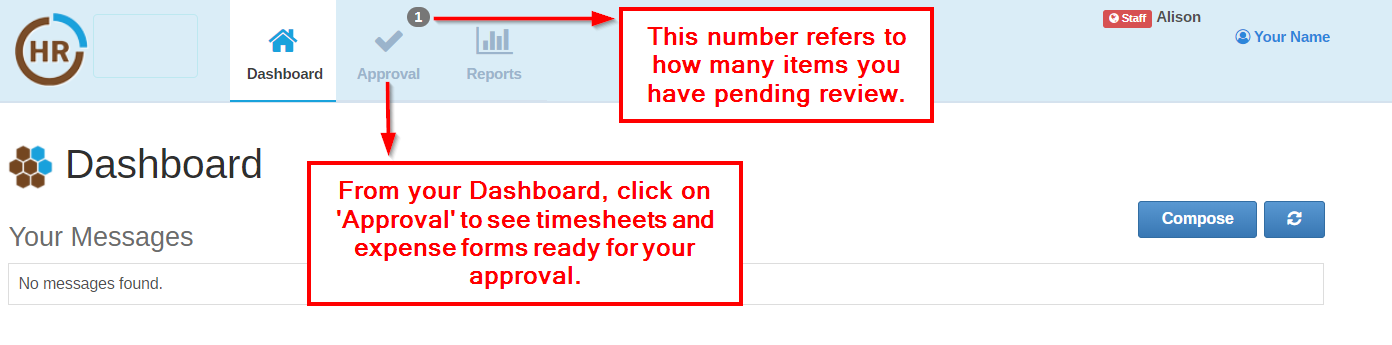
Once logged in, you will be sent to your homepage, or your Dashboard. The menu bar at the top shows a snapshot of your pending items: ‘Approval’ shows you how many items are waiting for your approval. You’ll click here to access the detail by employee.
Approving your Timesheet(s) and Expense Reports
Once you click on ‘Approval’ you will see a list of the items pending your approval:
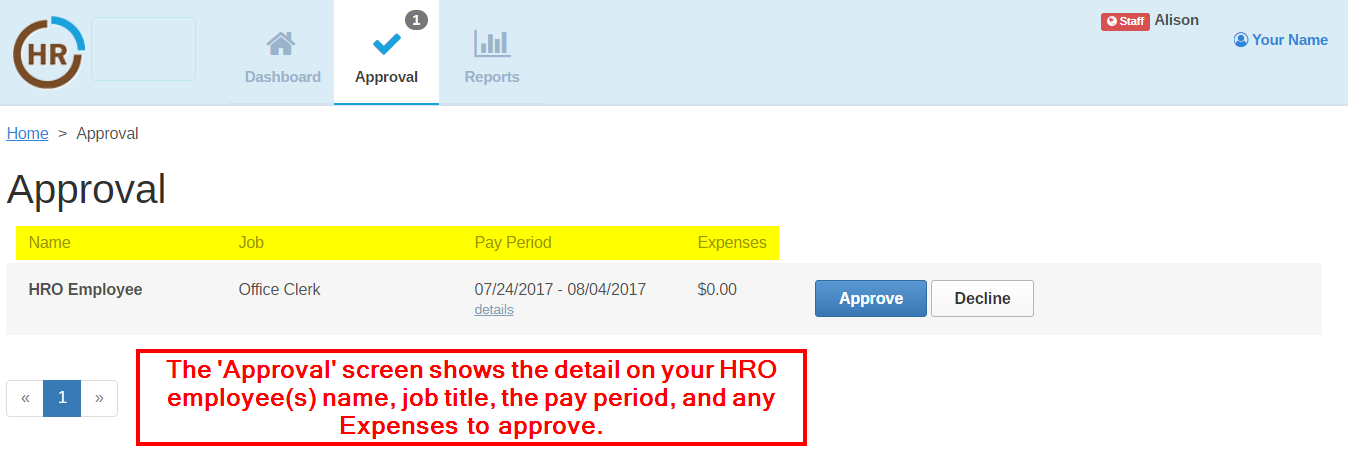
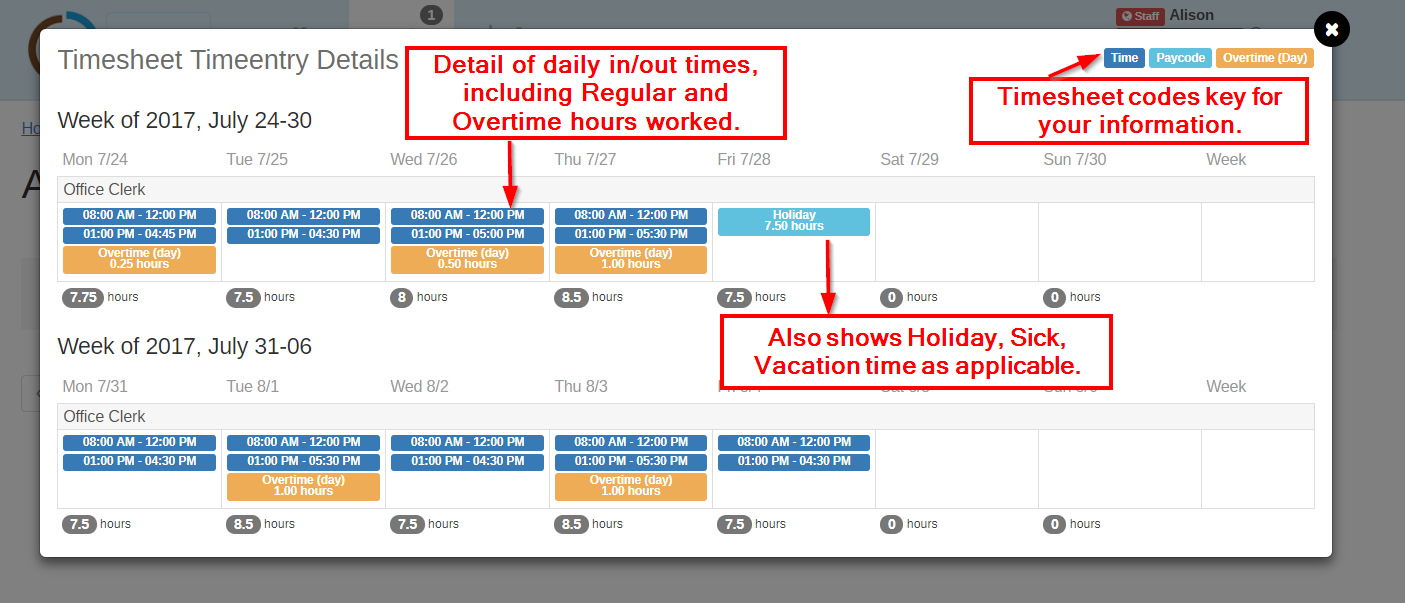
Click on ‘details’ to see the the daily time entry details of the employee’s bi-weekly timesheet.
This is where you will confirm that the hours worked are correct, taking into account Overtime and Sick, Vacation and Holiday pay as applicable:
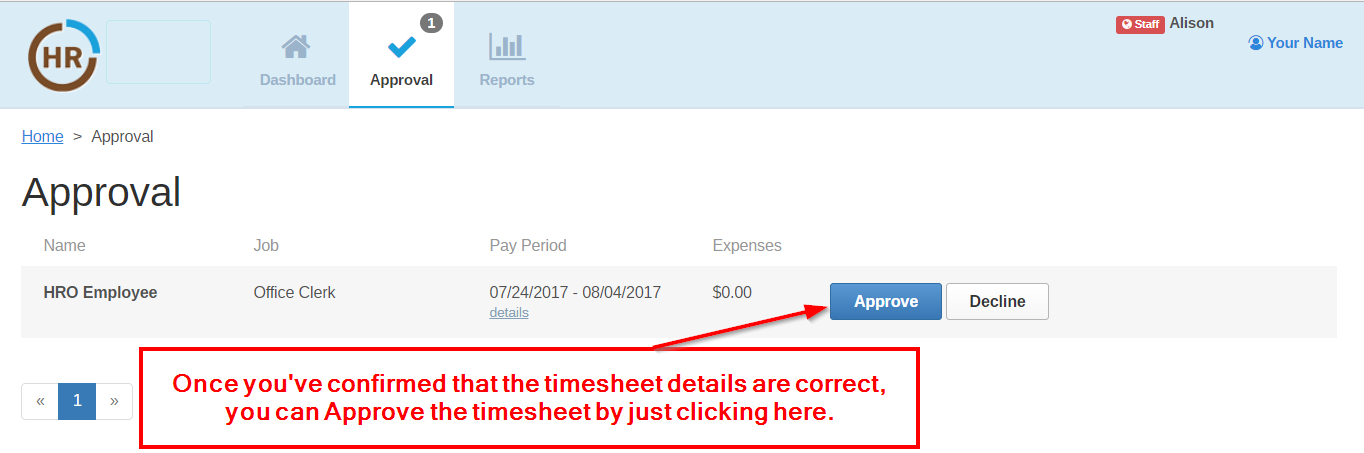
If everything looks correct, click ‘Approve’ to approve the timesheet for HR Options payroll. This will allow the employee to get paid!
Declining your Timesheet(s) and Expense Reports
If the details do not look correct, you can ‘Decline’ the timesheet. This process allows you to send a note to the employee asking them to update the timesheet and re-submit it for your approval, once corrected.
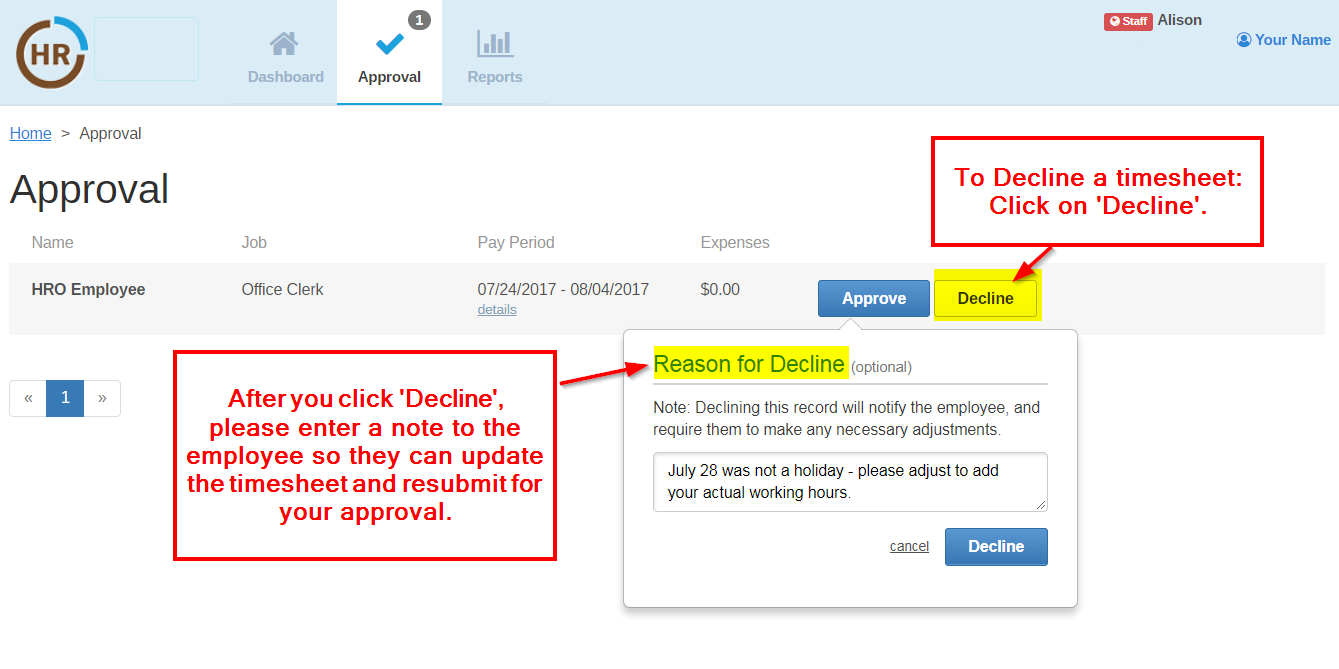
Please note that you will need to Approve the timesheet after the employee adjusts it, so that you can make sure they get paid on time. If you have any questions please reach out to HR Options either via a message from your dashboard or at service@hroptions.com.
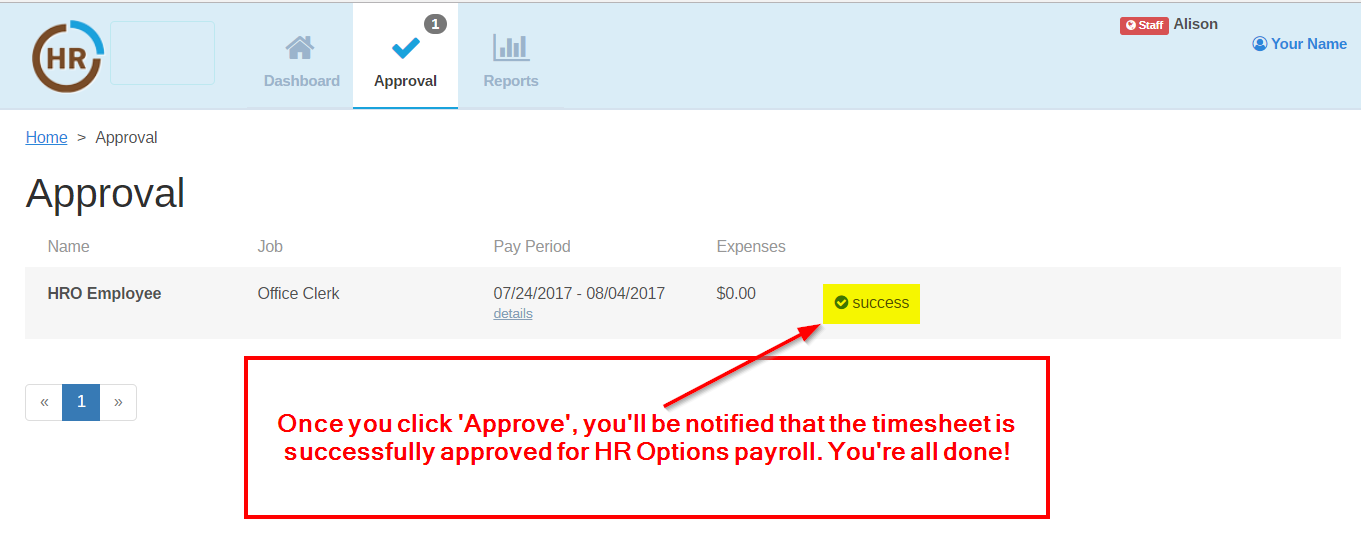
Once you have reviewed the timesheet and clicked on ‘Approve’ you’ll get a note that tells you the timesheet approval was successful - and the employee will be paid.
Please approve timesheets and expenses promptly, so that we can process the employee’s bi-weekly pay.
If you have any questions, email the Service Team at service@hroptions.com.
0 Comments