
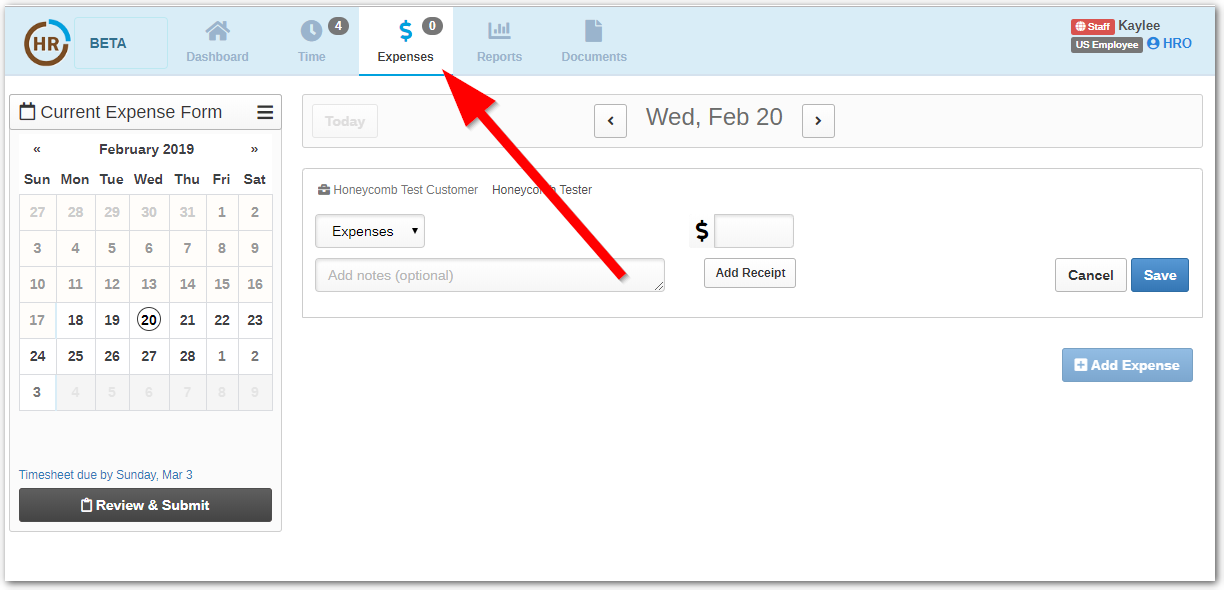
By clicking on the Expenses icon located on the top bar of the page (seen above), you will be taken to a Calendar that allows you to log expenses or mileage during that pay period. Entering expenses follows a similar set-up to entering hours.
First, select a date for the expense/mileage submission by clicking the date on the calendar.
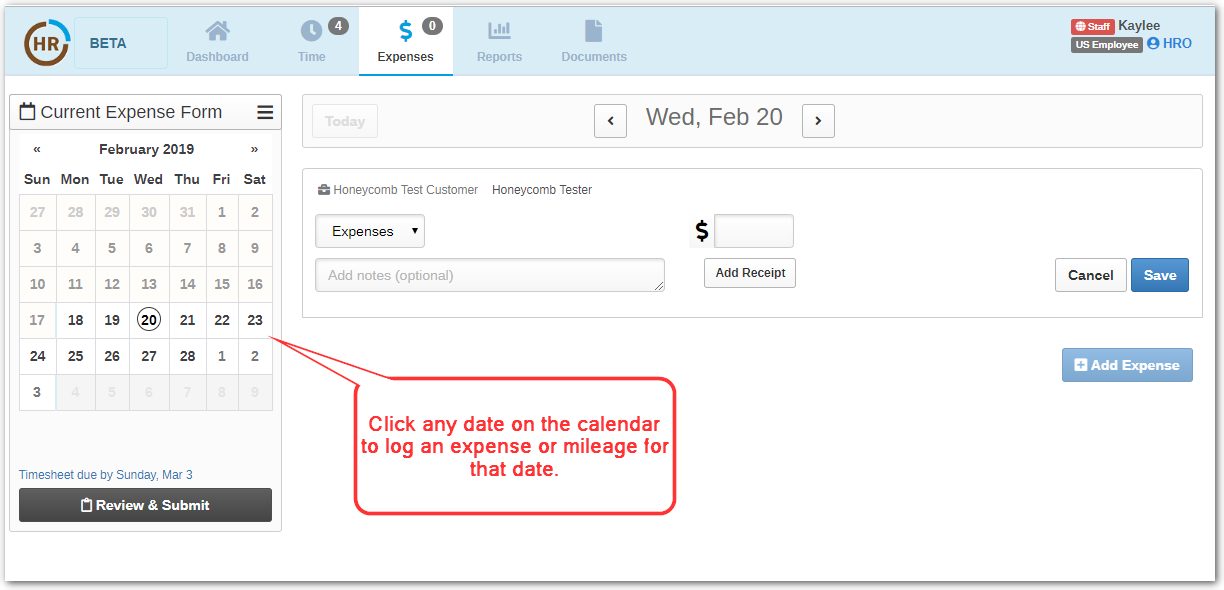
Next, use the drop down menu to select type of expense (Expense or Mileage). Next, enter the amount of your expense. If required by your supervisor, you can also enter a comment or file attachment.
If you are entering Mileage, please enter the distance you traveled as the amount.
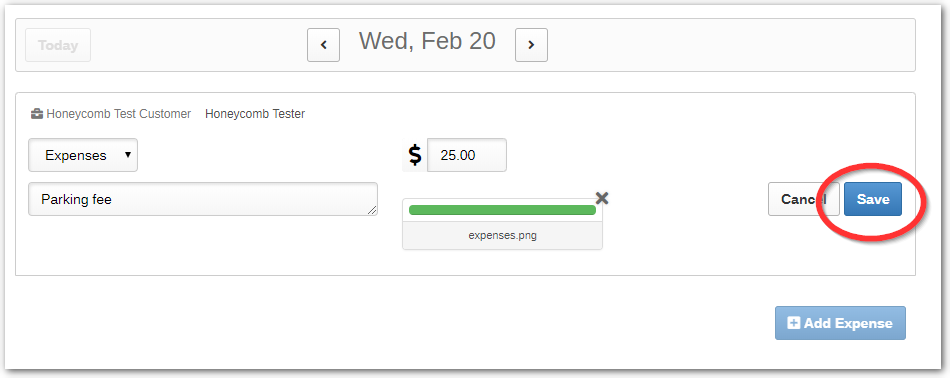
Once you’ve entered all your expense details, click the “Save Button” on the right (highlighted below).
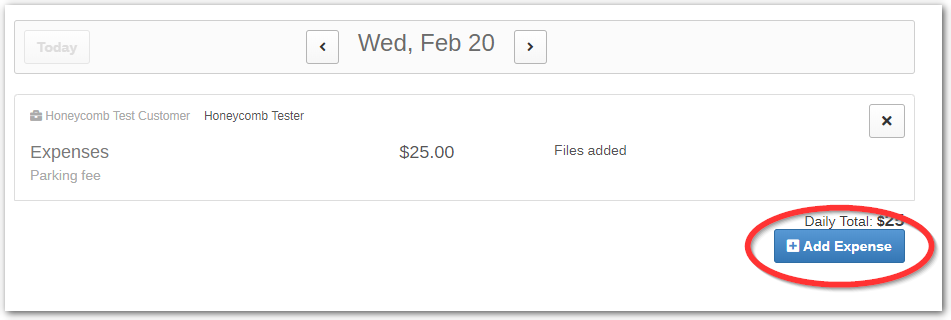
To add another expense for the same day, click the blue Add Expense button (highlighted below) and a new field for expense entry will appear. Fill in the fields for the new expense, the way the image below shows.
Don’t forget to save when you’re done!
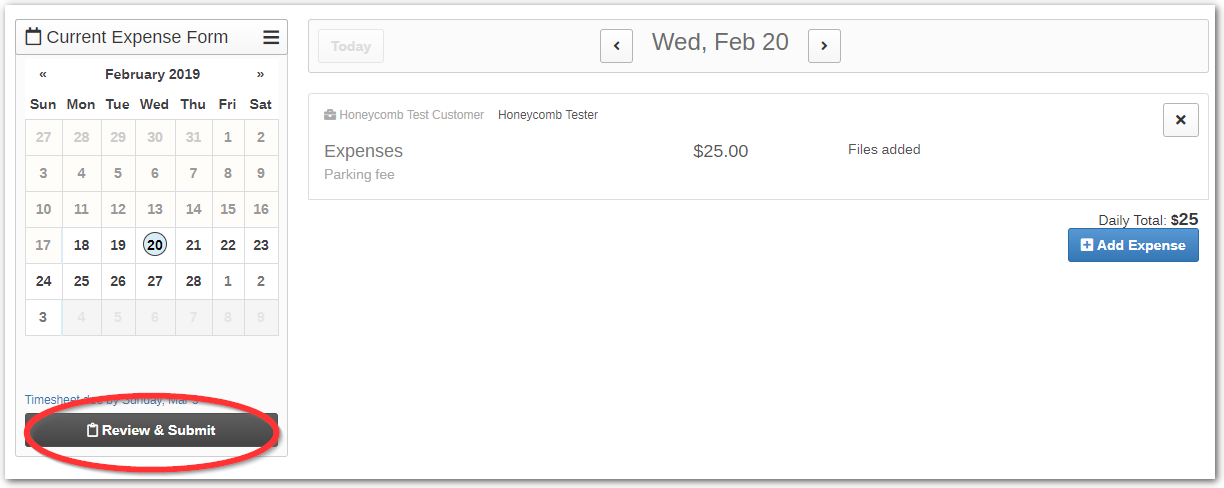
At the end of the pay period, you review and submit your expenses by clicking the dark gray “Review and Submit” button on the left-hand side, the same way you would for your timesheet.
0 Comments