
The Dashboard will be used as your homepage and for communication between you, the employees, and HR Options.
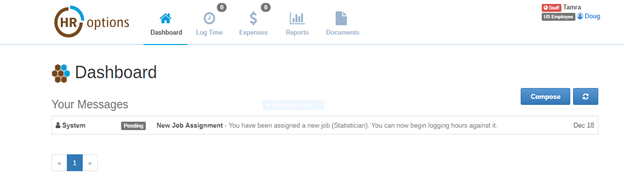
You will receive an email with the subject “You Have New Message” when a message or response is waiting on your Dashboard. Notifications may include automated messages from a supervisor or HR Options that require immediate action.
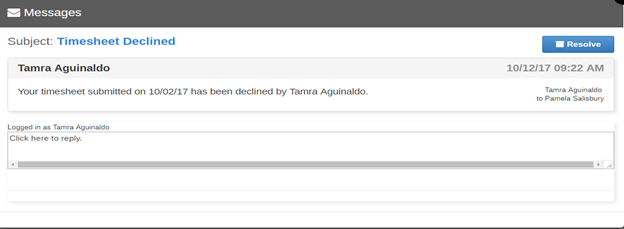
For example, if a timesheet is declined by a supervisor, a notification titled “Timesheet Declined” will appear under the Your Messages section as shown below.
To view the message, click on the notification. Once the message is opened and read, you have the option of sending a reply or taking action on the item described. Employees can archive the message by clicking the blue Resolve button. This will close the message thread and remove the message from your Dashboard.
Send a Message to HR Options
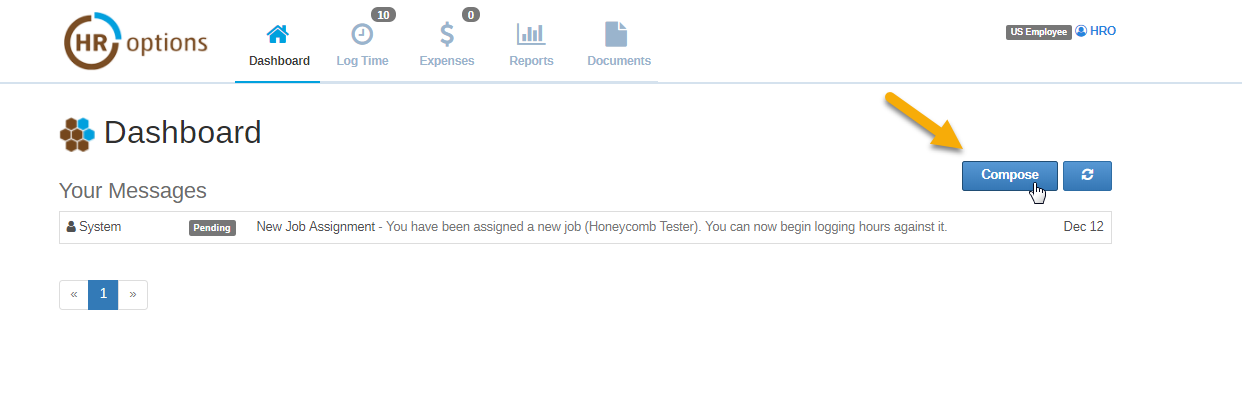
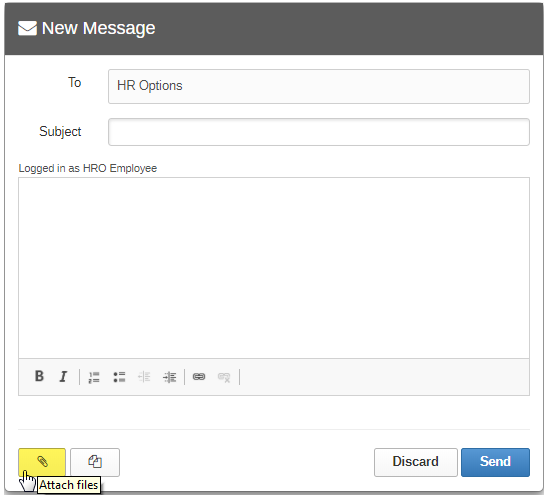
You can contact HR Options directly, by clicking the Compose button on your dashboard. You have the ability to write a message as well as attach files to your message by clicking the Attachments icon, as shown below.
HR Options will review all messages and a Service member will provide a response in a timely manner.
0 Comments